Charger Settings
Depending on the charger brand you are using, you need to connect it to our platform according to the instructions below.
OCPP Connection Details
In the Portal, go to your charger’s detail page and select the OCPP option.
You will need to set the following values in your charging station:
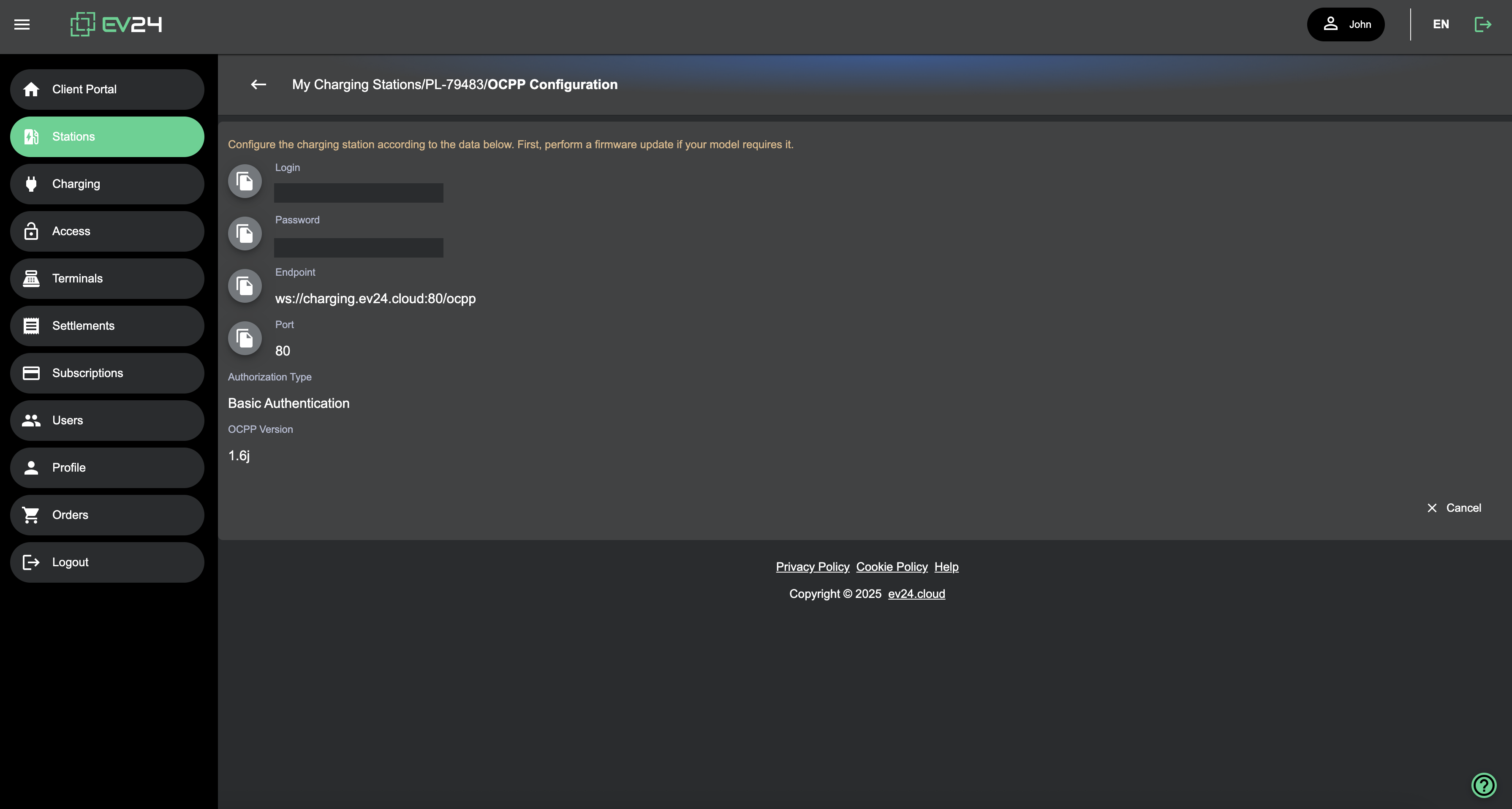
- Endpoint – This is a required parameter that must be configured according to the instructions below.
- Login – This is the username or identifier of the charging station. This is not always required – it depends on the manufacturer.
- Password – The password needed to connect your charger to the system. Also optional depending on the manufacturer.
How to configure your charging station
Charger manufacturers provide different methods to set OCPP configuration data, such as:
- Downloading a mobile app and connecting via smartphone;
- Using a web portal for remote configuration;
- Configuration directly via the station’s LCD screen;
- Connecting a computer to the station via cable.
The most common method is to use a mobile app.
Below you’ll find information on how to configure your charging station.
Charger Configuration Methods
| Manufacturer | Configuration Method |
|---|---|
| ALFEN | Mobile App |
| AMINA | EV24 Portal |
| AUTEL | Mobile App, Portal |
| CIRCONTROL | Mobile App |
| DAZE | Mobile App |
| EASEE | Mobile App |
| EATON | Mobile App |
| EKOENERGETYKA | Mobile App |
| ELINTA | Mobile App |
| EMITER | Mobile App |
| ENELION | Mobile App |
| ENSTO | Cable |
| EVB | Mobile App |
| GARO | Mobile App |
| HEIDELBERG | Mobile App |
| HELLONEXT | Mobile App |
| INBALANCE | Mobile App |
| KEBA | Mobile App |
| MYENERGI | Mobile App |
| ROLEC | Mobile App |
| SIBLIK | Mobile App |
| SOLA | Mobile App, LCD Screen |
| TELTONIKA | Mobile App |
| VOOL | Mobile App |
| ZAPTEC | Mobile App, Portal |
| ZPUE | Service |
🟢
Once the OCPP data is configured correctly, your charging station should show as Online in the Portal after a short while.