Import of access tokens
Do you have many RFID cards, or want to give PINs to a whole team? Instead of adding them one by one in the form, prepare a CSV file and import them all at once. Every card from the file works exactly like a card added by hand.
What the import does
- One file can contain RFID cards and PIN codes in any order.
- You set everything the form offers: name, email, first and last name, phone, licence plate, external ID, energy limit, status and station access.
- For every PIN the system generates the code and emails it to the address in the file, just as when you add a PIN by hand.
- The import is safe: the whole file is checked first and cards are saved only when every row is correct. If a single row has an error, Import saves nothing and sends no email. You can then fix the file or deliberately import only the valid rows (see below).
The import only adds new cards. It does not change or delete the cards you already have. An RFID card whose number is already registered, or a PIN for an email address that already has one, is marked as an error.
Downloads
- Template (header only) — start here when you prepare your own list.
- Valid example — RFID cards and PINs with limits, licence plates, external IDs and inactive cards. It imports in any company, as it grants access to all stations.
- Example with errors — every row has a different error. The import fails and the preview shows what to fix.
To limit a card to selected stations, enter the names of your locations in locations or the aliases of your stations in stations, e.g. Office|Warehouse or ZH-50500|ZH-50600. The RFID numbers of the example can be imported only once, as a card number is unique in the whole system.
Example file to copy
A valid file you can import in any company. Expand it, copy it with the button in the top right corner of the block, paste it into an empty text file and save it as cards.csv in UTF-8.
Show the example file
type;name;rfid_number;email;first_name;last_name;phone;license_plate;external_id;energy_limit_kwh;limit_frequency;status;access_scope;locations;stations
RFID;John Smith — Skoda Enyaq;EV24-DEMO-EN-0001;john.smith@company.com;John;Smith;+44 7700 900123;LB21 ABC;EMP-0001;;;;;;
RFID;Emma Brown — Tesla Model 3;EV24-DEMO-EN-0002;emma.brown@company.com;Emma;Brown;+447700900456;MA70 XYZ;EMP-0002;150.5;RECURRING;ACTIVE;ALL;;
RFID;Service card;EV24-DEMO-EN-0003;service@company.com;;;;;SRV-01;20;ONE_TIME;;;;
RFID;"Spare; card 1";EV24-DEMO-EN-0004;fleet@company.com;;;;;;;;INACTIVE;;;
RFID;Delivery van;EV24-DEMO-EN-0005;fleet@company.com;Michael;Taylor;;KX19 DFG;FLEET-17;300;RECURRING;ACTIVE;all;;
PIN;;;oliver.jones@company.com;Oliver;Jones;;YH68 KLM;EMP-0003;;;;;;
PIN;Reception guests;;reception@company.com;;;+44 20 7946 0958;;;10;RECURRING;;;;
PIN;Intern;;intern@company.com;Sophie;Wilson;;;EMP-0004;5;ONE_TIME;INACTIVE;ALL;;
PIN;Night shift driver;;nightshift@company.com;James;Davies;+44 7700 900789;BD51 SMR;EMP-0005;;;active;;;
How to import
Prepare the file
Fill in the template in a spreadsheet. One row is one RFID card or one PIN. Save the file as CSV UTF-8 (in Excel: File → Save as → CSV UTF-8 (Comma delimited)).
Open the import in the portal
Go to Tokens and click Import next to the add card button.

Choose the file
Click Choose file. The portal checks every row right away and shows a preview: line number, type, card, result and errors.
Fix the errors or import the valid rows
If a row has an error, fix it in the file and choose the file again. To add what is correct right away, click Import valid rows (N of M): the cards from valid rows are added and the rows with errors are skipped. This button appears only when the file has both valid and invalid rows.
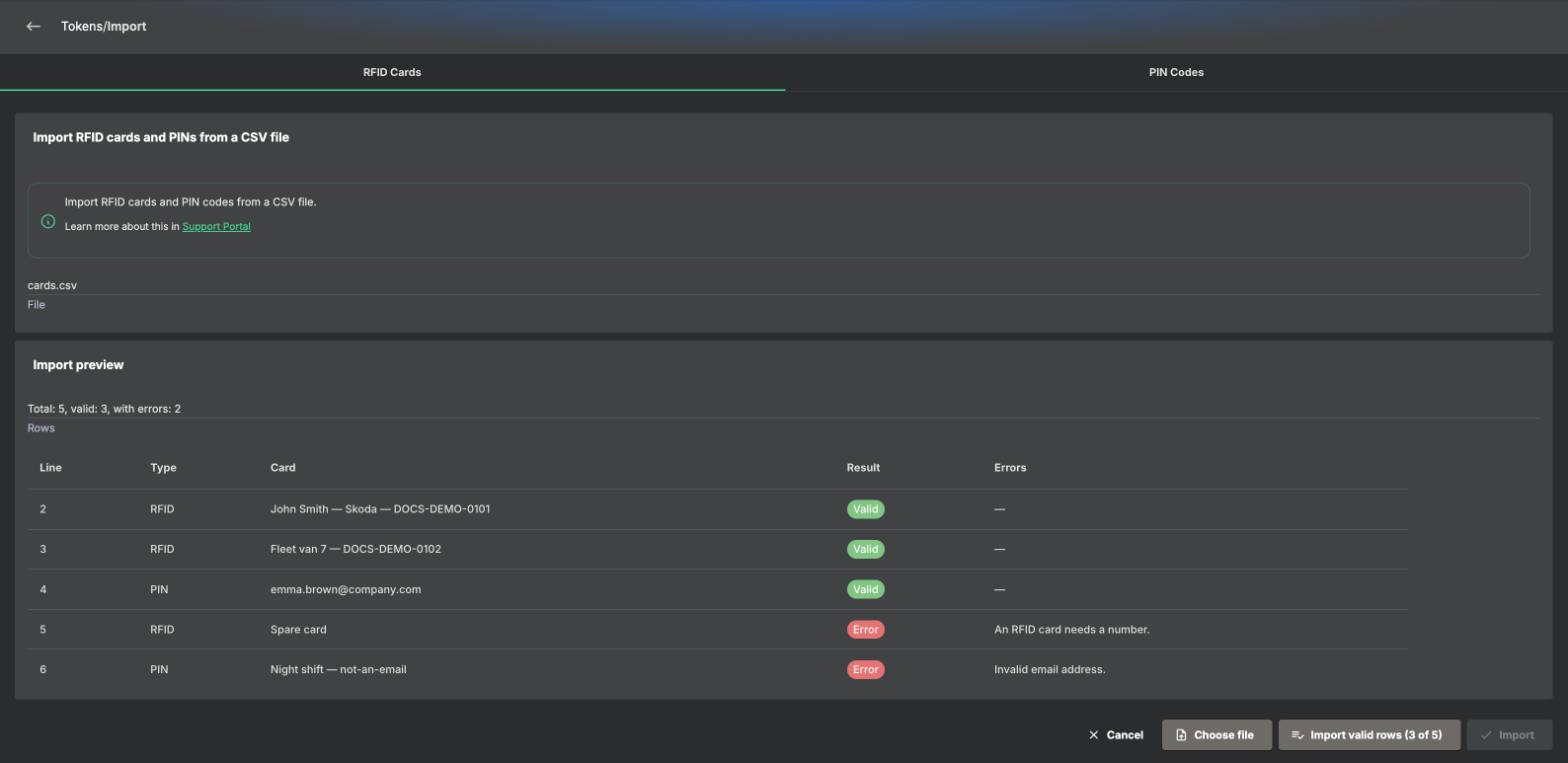
Import
Click Import. All cards appear on the RFID Cards and PIN Codes lists, and people with PINs receive an email with their code.
File columns
The first row of the file is the header with column names. Letter case does not matter and the columns can be in any order. Only type and email are required; you can leave out columns you do not need.
| Column | Required | What to enter |
|---|---|---|
type | yes | RFID or PIN |
name | no | card name, e.g. “John Smith — Skoda” (up to 120 characters) |
rfid_number | for RFID | RFID card number (up to 200 characters); leave empty for a PIN, the PIN is generated |
email | yes | owner’s email; the PIN is sent to this address |
first_name, last_name | no | first and last name (up to 80 characters) |
phone | no | phone number, e.g. +44 7700 900123 |
license_plate | no | car licence plate |
external_id | no | external ID, e.g. a number from your own system |
energy_limit_kwh | no | energy limit in kWh, e.g. 50 or 150.5 |
limit_frequency | no | ONE_TIME (default) or RECURRING; only together with a limit |
status | no | ACTIVE (default) or INACTIVE |
access_scope | no | ALL (all stations, default) or SELECTED |
locations | with SELECTED | names of your locations separated by | |
stations | with SELECTED | aliases of your stations separated by | |
More rules:
- Columns can be separated by a semicolon
;or a comma,. The portal detects which one. - Put a value that contains the separator in double quotes, e.g.
"Spare; card 1". - If you give locations or stations and leave
access_scopeempty, the card gets access to those only. - An RFID card always has a recurring limit, as in the form.
- A file can have at most 1000 rows and 1 MB. The total number of cards in your company cannot exceed the limit of your account.
- A value cannot start with
=or@(protection against spreadsheet formulas).
Common errors
| Message | What to do |
|---|---|
| An RFID card with this number is already registered. | Remove the row or correct the number. RFID numbers are unique in the whole system. |
| A PIN for this email address already exists. | This person already has a PIN in your company. Remove the row. |
| The same card appears more than once in the file. | The same RFID number or PIN email is in the file twice. Keep one row. |
| No location with this name in your company. | Check the location name in the portal; letter case does not matter. |
| Your company has several locations with this name. | Give the stations by alias in the stations column instead. |
| No station with this alias in your company. | Check the station alias on the station list. You can grant access only to your own stations. |
| The file must be saved as UTF-8. | Save the file again as CSV UTF-8. |
| Unknown or repeated column. | Fix the column name in the header, e.g. email instead of e-mail. |
| The import would exceed the card limit of your company. | Split the file or remove unused cards. |
See also
- Access methods — how RFID cards and PIN codes work.
- Authorization methods — switch RFID or PIN on at the station.